

Shopping list
One list per household, built from whatever is on your plan, scaled to your household size, and grouped by aisle.
Starting a list
The first time you visit Shopping, pick a date range to build the list from (it defaults to covering what you’ve already planned). You can also tick “Not tied to any dates” for a plain free-form list that ignores the plan entirely — useful for a one-off big shop.
The same ingredient from multiple recipes is merged into one line (you’ll see “2 recipes” next to it), and everything is scaled to the number of people in your household. Eating-out days are excluded automatically.
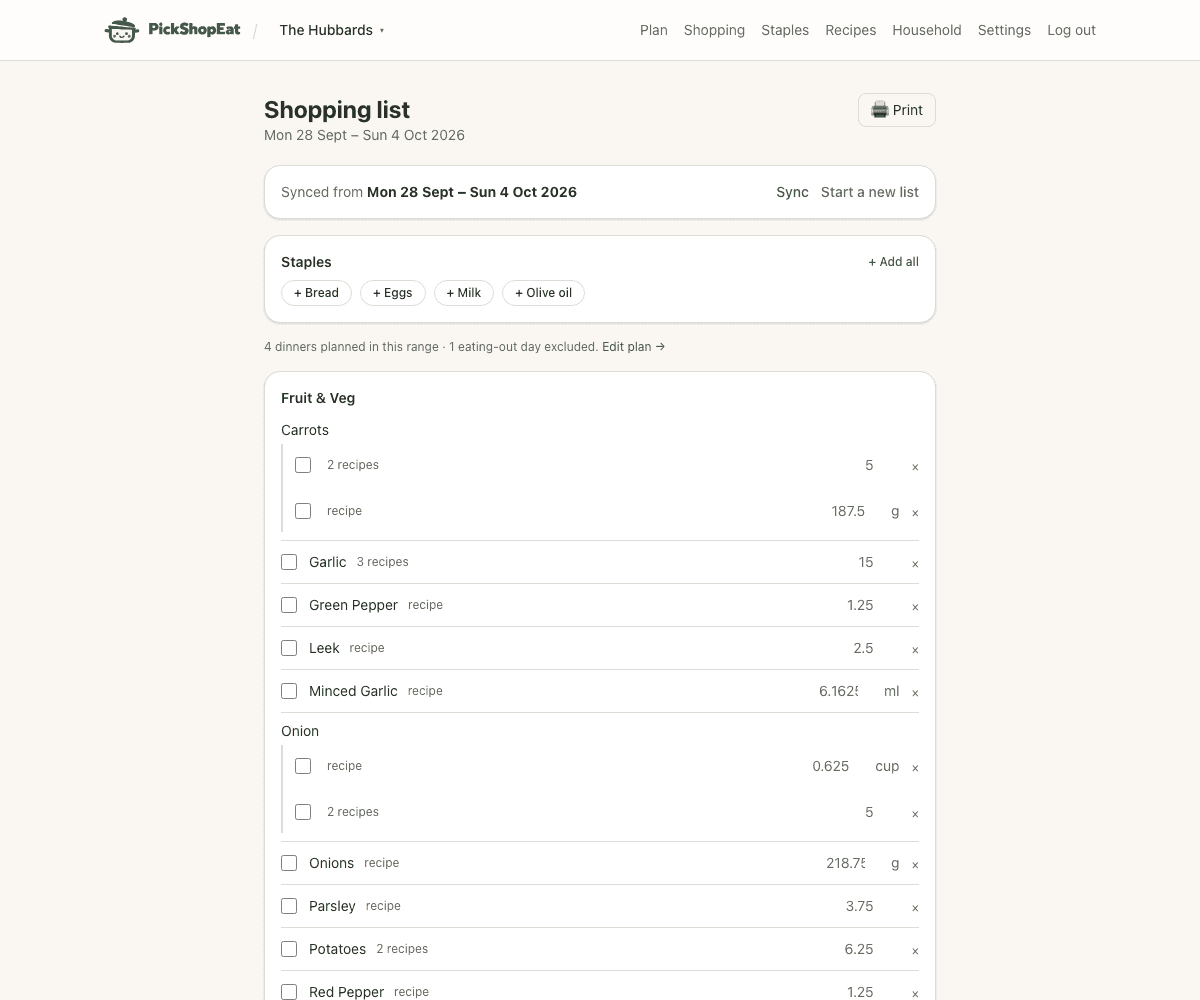
Sync vs. Start a new list
You don’t need to do anything after the first setup — adding, swapping, or removing a meal on the plan quietly updates the active list in the background. Anything you’ve already checked off or hidden is never touched by this.
- Sync recomputes quantities (e.g. after changing the date range or the household size) while leaving every checked-off or hidden item exactly as you left it.
- Start a new list is a genuine clean slate — it deletes everything on the current list, checked or not, including manually added items, and builds a fresh one for a new range.
Checking things off
Checked items move into a collapsed “Checked / already have” section at the bottom rather than disappearing, so you can still see — and restore — anything you checked by mistake.
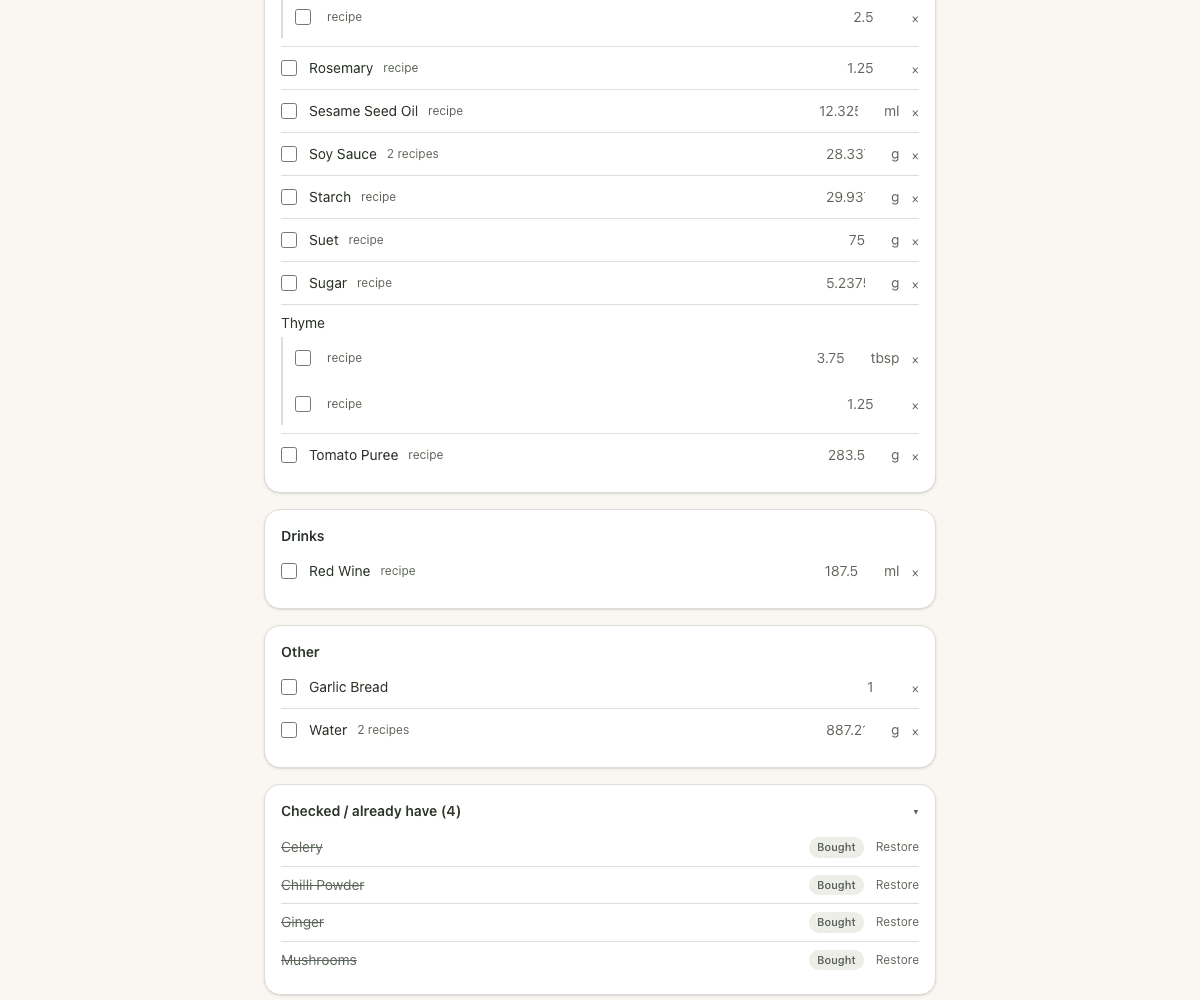
Adding your own items
The “Add an item” box at the bottom of the list is for anything that isn’t coming from a recipe or a staple — kitchen roll, a birthday candle, whatever. It merges with an existing line of the same ingredient and unit rather than duplicating it.